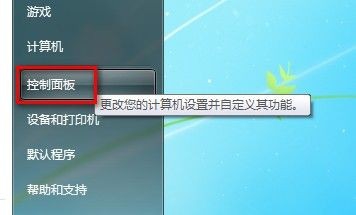
1、无线网络的创建打开控制面板
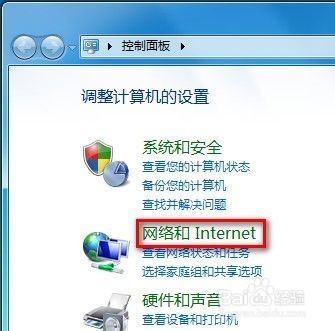
2、找到并打开网络和Internet
3、点击“设置新的连接或网络”。

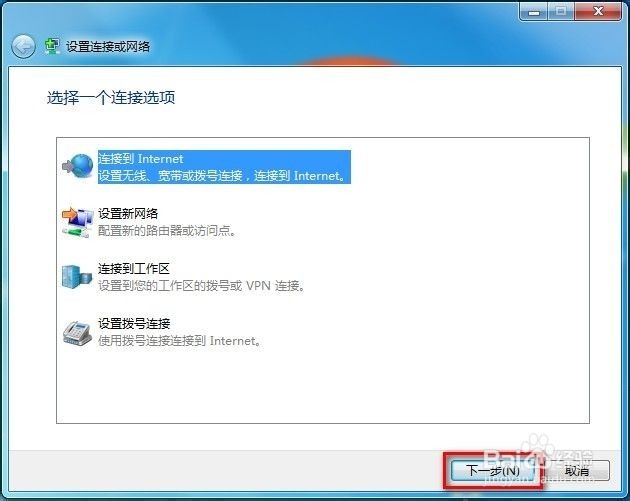
4、选择“连接到Internet",点击“下一步”
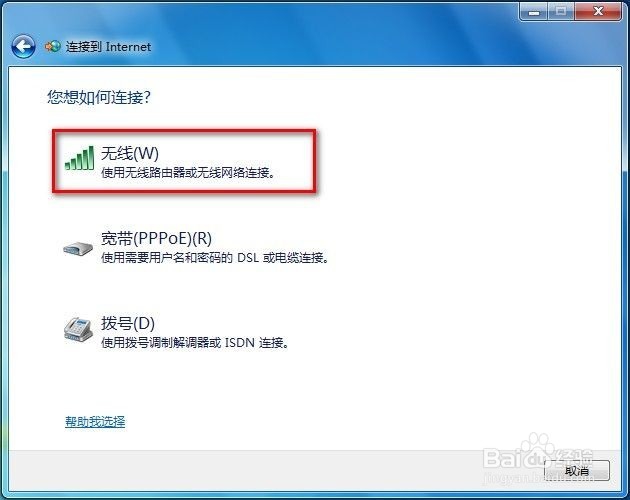
5、单击无线
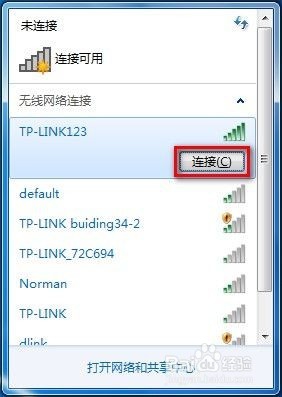
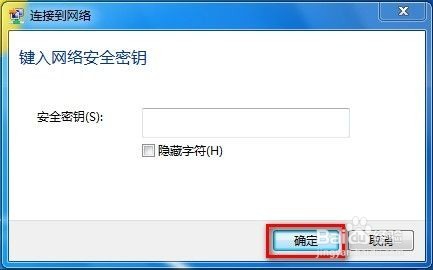
6、右下角出现搜索到的无线网络找到一个无线网点击连接输入密码确定
1、和上面一样打开控制面板----找到并打开网络和Internet----点击“设置新的连接或网络”

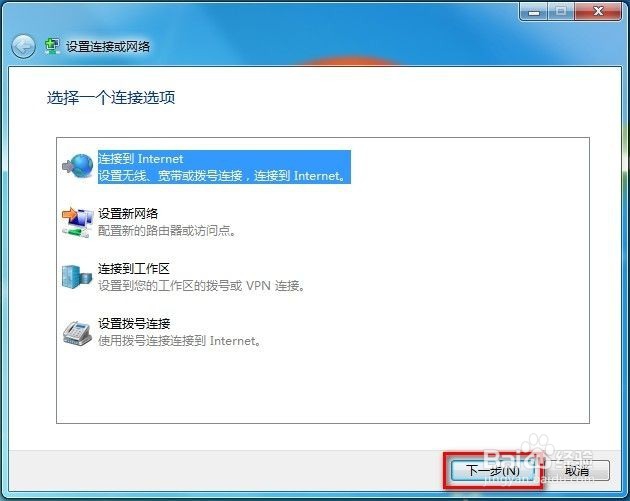
2、选择“连接到Internet”,点击“下一步”。
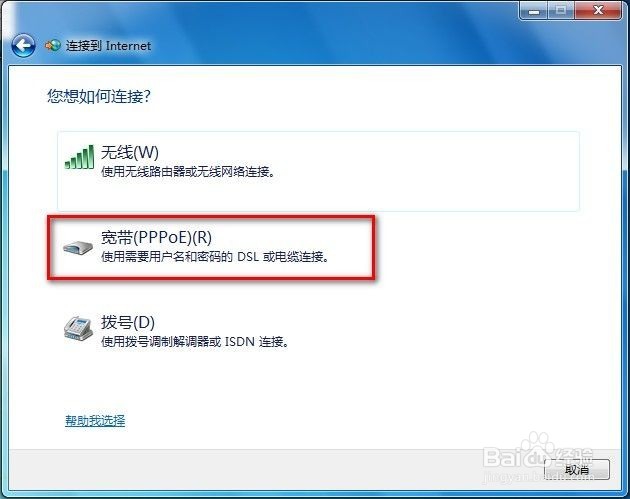
3、单击“宽带(PPPoE)”。
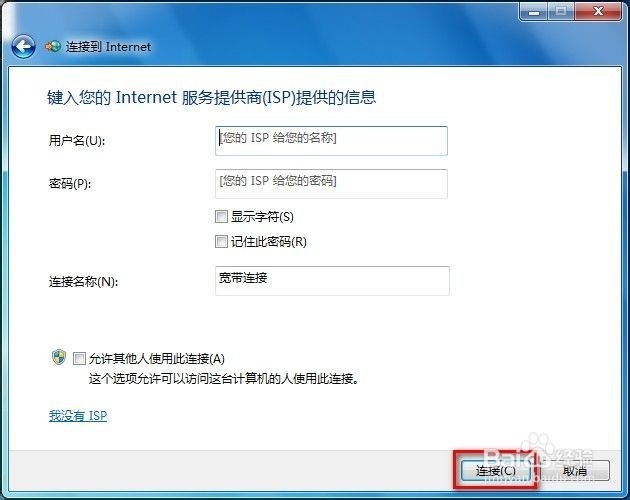
4、输入相关ISP提供的信息后点击“连接”即可。
1、无线网络的创建打开控制面板
2、找到并打开网络和Internet
3、点击“设置新的连接或网络”。
4、选择“连接到Internet",点击“下一步”
5、单击无线
6、右下角出现搜索到的无线网络找到一个无线网点击连接输入密码确定
1、和上面一样打开控制面板----找到并打开网络和Internet----点击“设置新的连接或网络”
2、选择“连接到Internet”,点击“下一步”。
3、单击“宽带(PPPoE)”。
4、输入相关ISP提供的信息后点击“连接”即可。