1、双击打开需要编辑的word文档

2、点击【视图】-【宏】

3、然后选择”查看宏“命令,打开”宏“对话框,

4、宏名:输入”picture“,再点击”创建“按钮

5、打开”宏代码“对话框,粘贴如下代码:
Sub Example()
Dim oInlineShape As InlineShape
Application.ScreenUpdating = False
For Each oInlineShape In ActiveDocument.InlineShapes
With oInlineShape.Borders
.OutsideLineStyle = wdLineStyleSingle
.OutsideColorIndex = wdColorAutomatic
.OutsideLineWidth = wdLineWidth050pt
End With
Next
Application.ScreenUpdating = True
End Sub

6、然后保存宏,并执行宏命令,

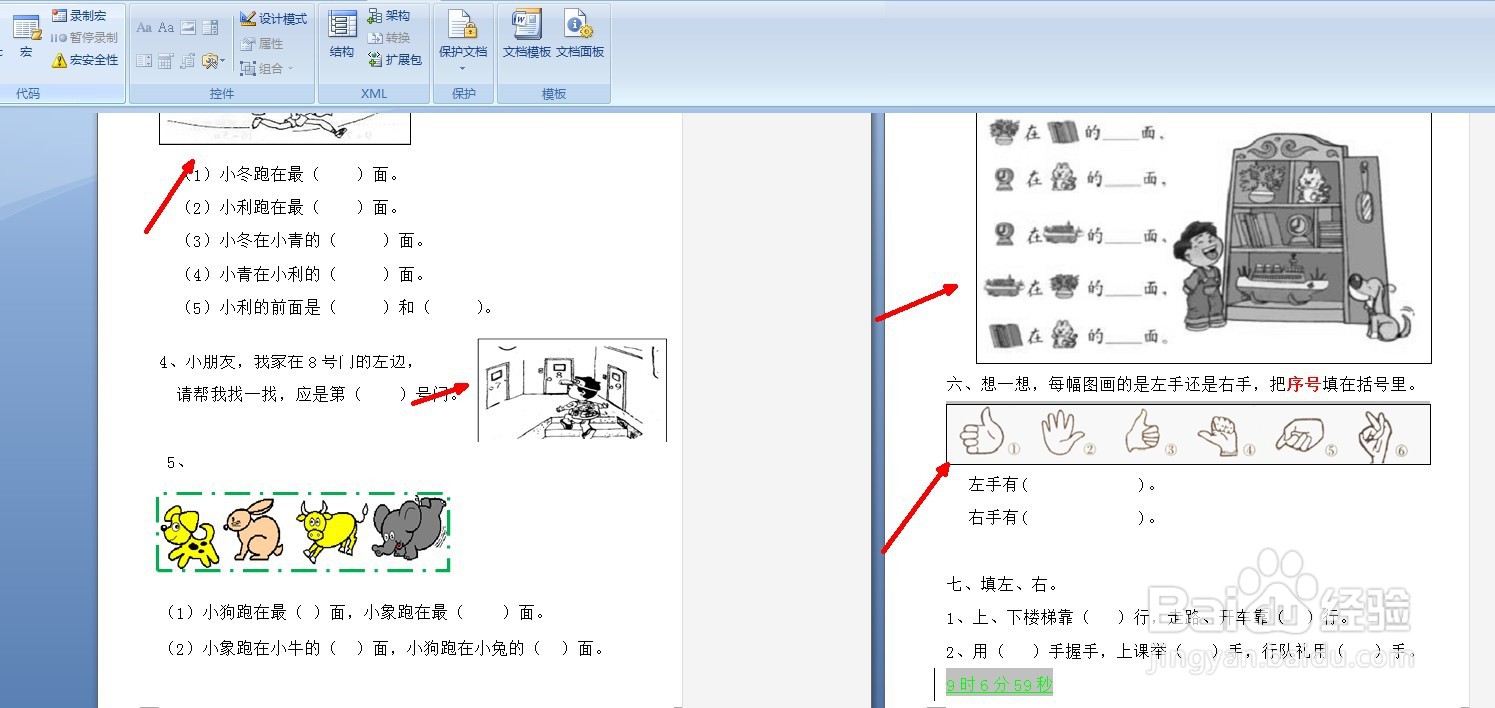
7、回到文档发现文档中的所有图片都添加了边框,如下图所示